
How to Apply Effects to an Audio File
Apply an effect, such as Reverb, to all or part of an audio file with Audio Editor.
Steps
Step 1: Download and Install Audio Editor
Download the Audio Editor installer, then run it to install Audio Editor.
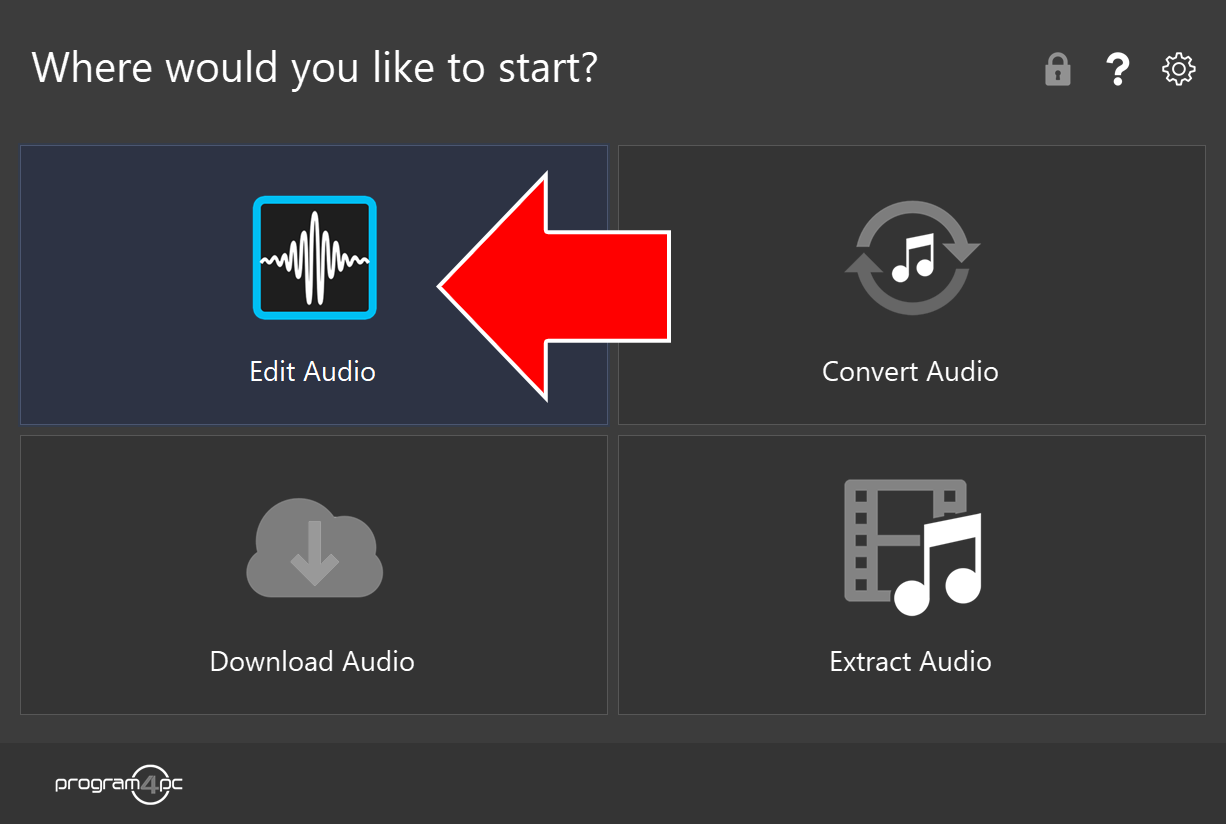
Step 2: Run Audio Editor and Click Edit Audio
On the start screen, click Edit Audio.
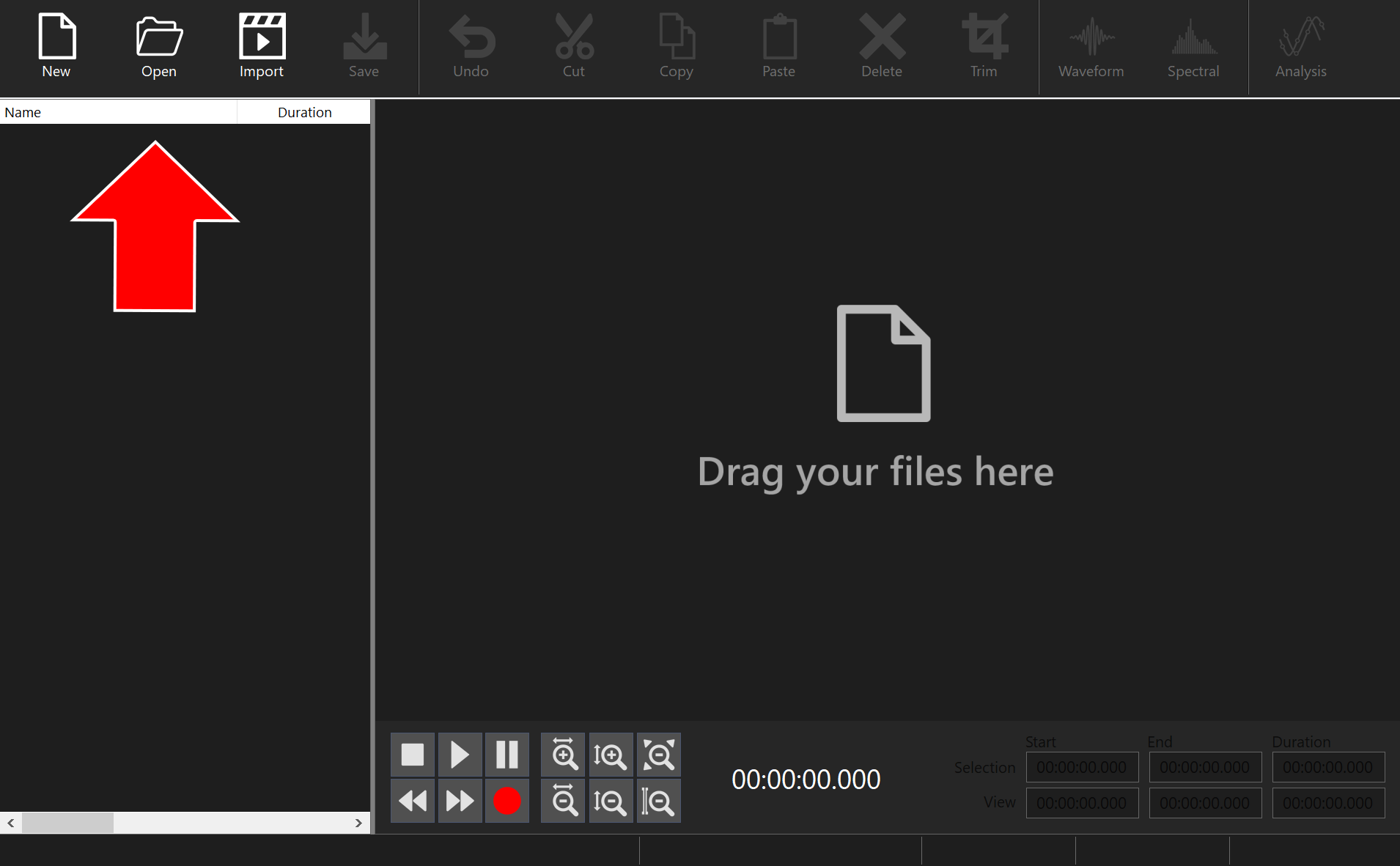
Step 3: Open Your Audio Files
Click Open in the toolbar and select the audio file you want to change. You can also drag your files and drop them into the window.
Step 4: Select Where to Apply the Effect
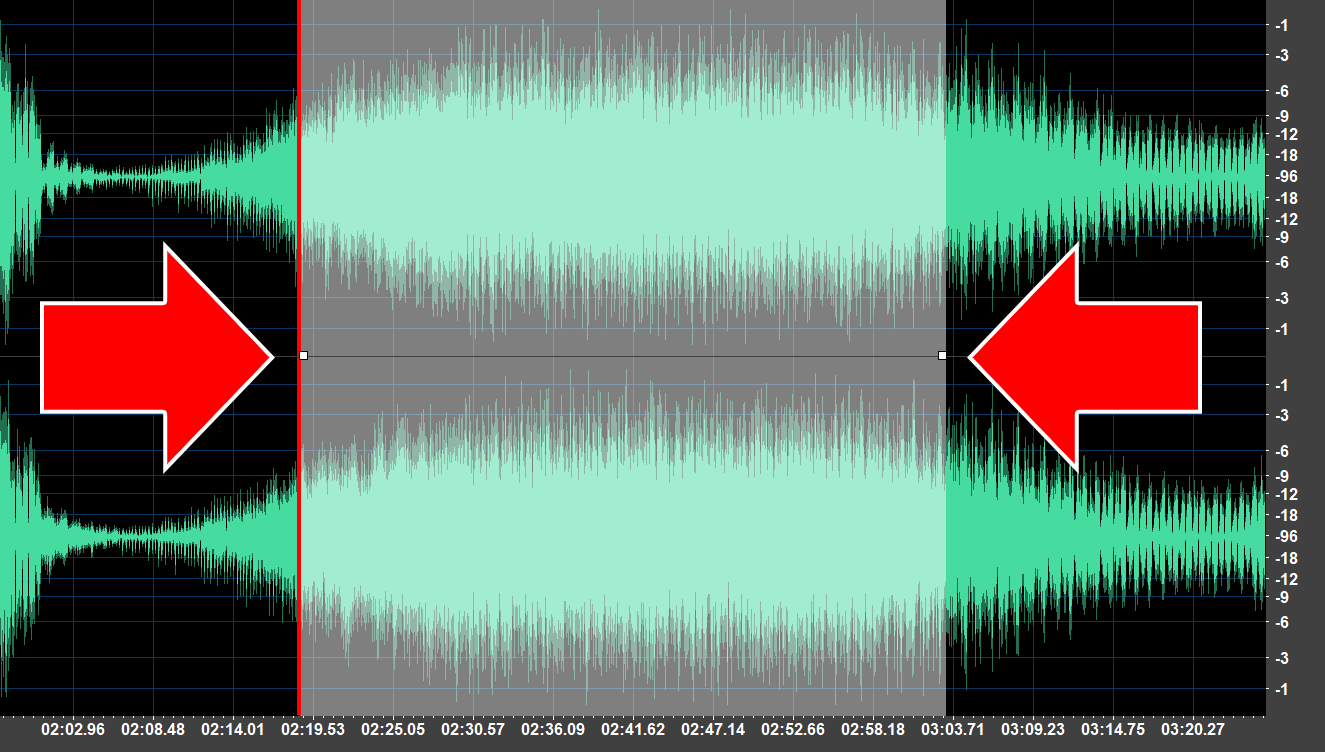
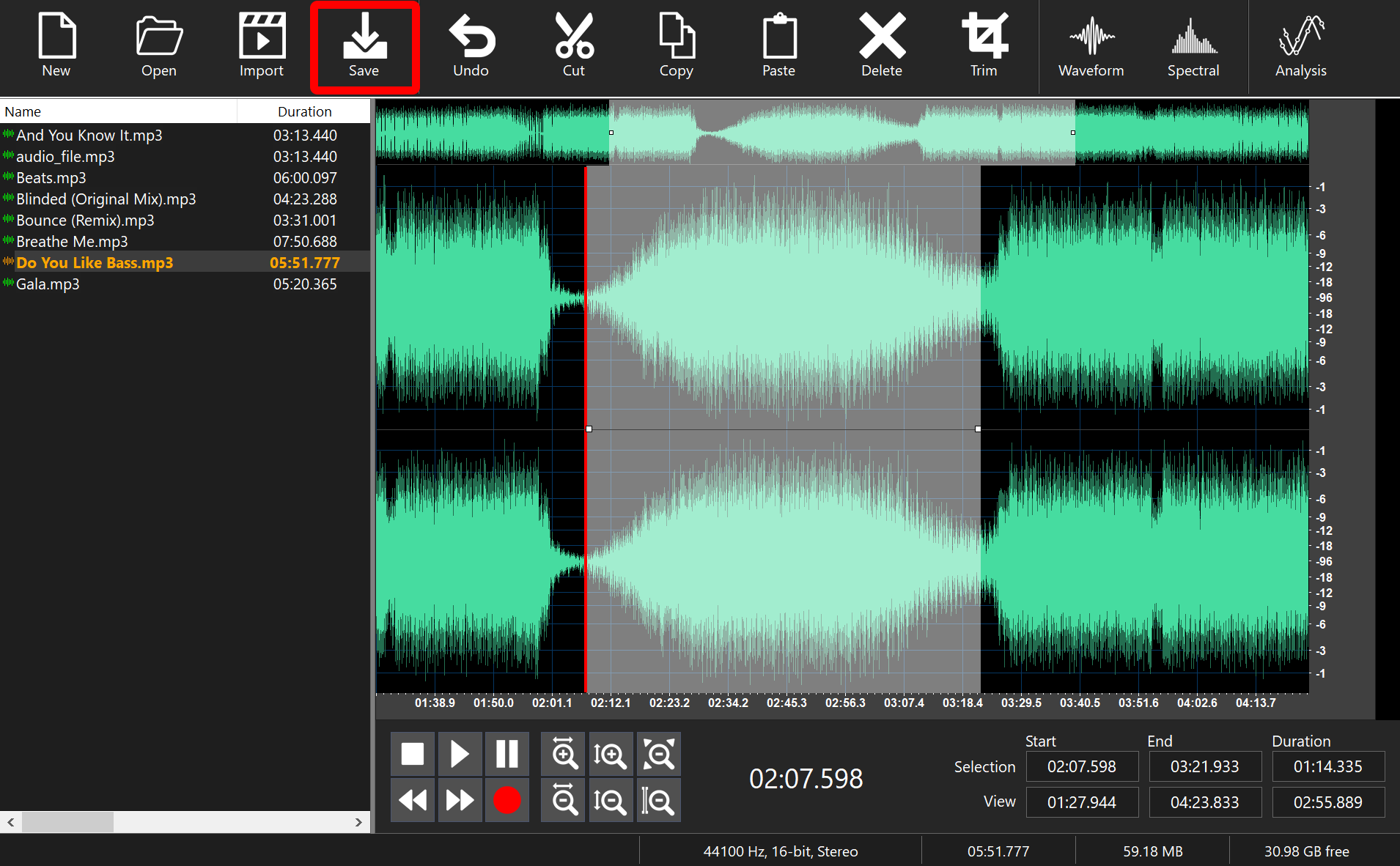
To apply an effect to part of the audio, click within the Waveform Display and, without releasing the left mouse button, move the cursor to the left or right to make a selection. When done, release the mouse button. If you do not select any portion of the audio, the effect will be applied to the entire audio file.
Step 5: Choose an Effect and Adjust It
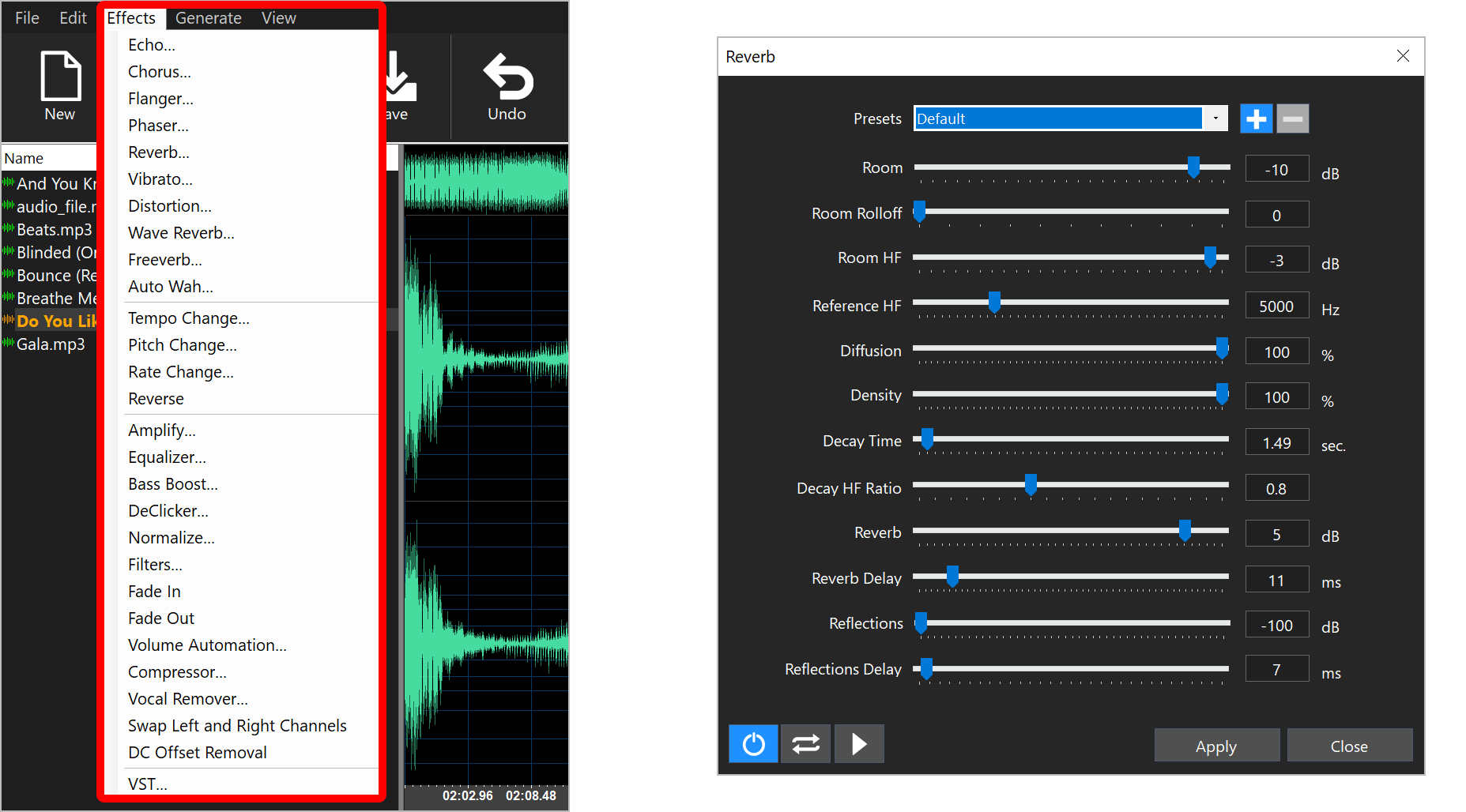
Open the Effects menu and choose an effect, such as Reverb. Adjust its settings in the window that opens, then click Apply.
Step 6: Save Changes
Click Save in the toolbar to save your changes.
That’s it!
Need more help?
Browse more guides, or contact our Support Team if you can’t find what you need.