
How to Convert Images to PDF Format
Convert your images to PDF and choose the page size with the image converter in Photo Editor.
Steps
Step 1: Download and Install Photo Editor
Download the Photo Editor installer, then run it to install Photo Editor.
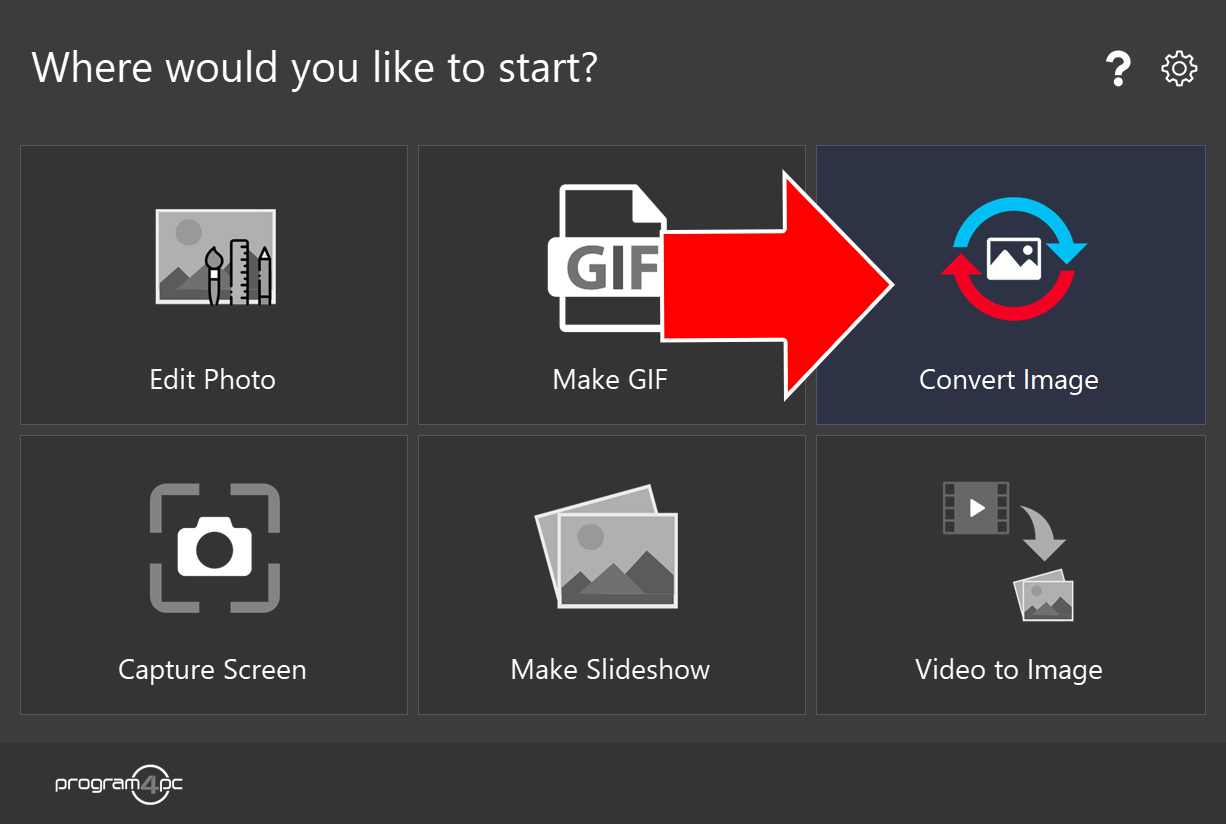
Step 2: Run Photo Editor and Click Convert Image
On the start screen, click Convert Image to open the image converter.
Step 3: Add Your Images
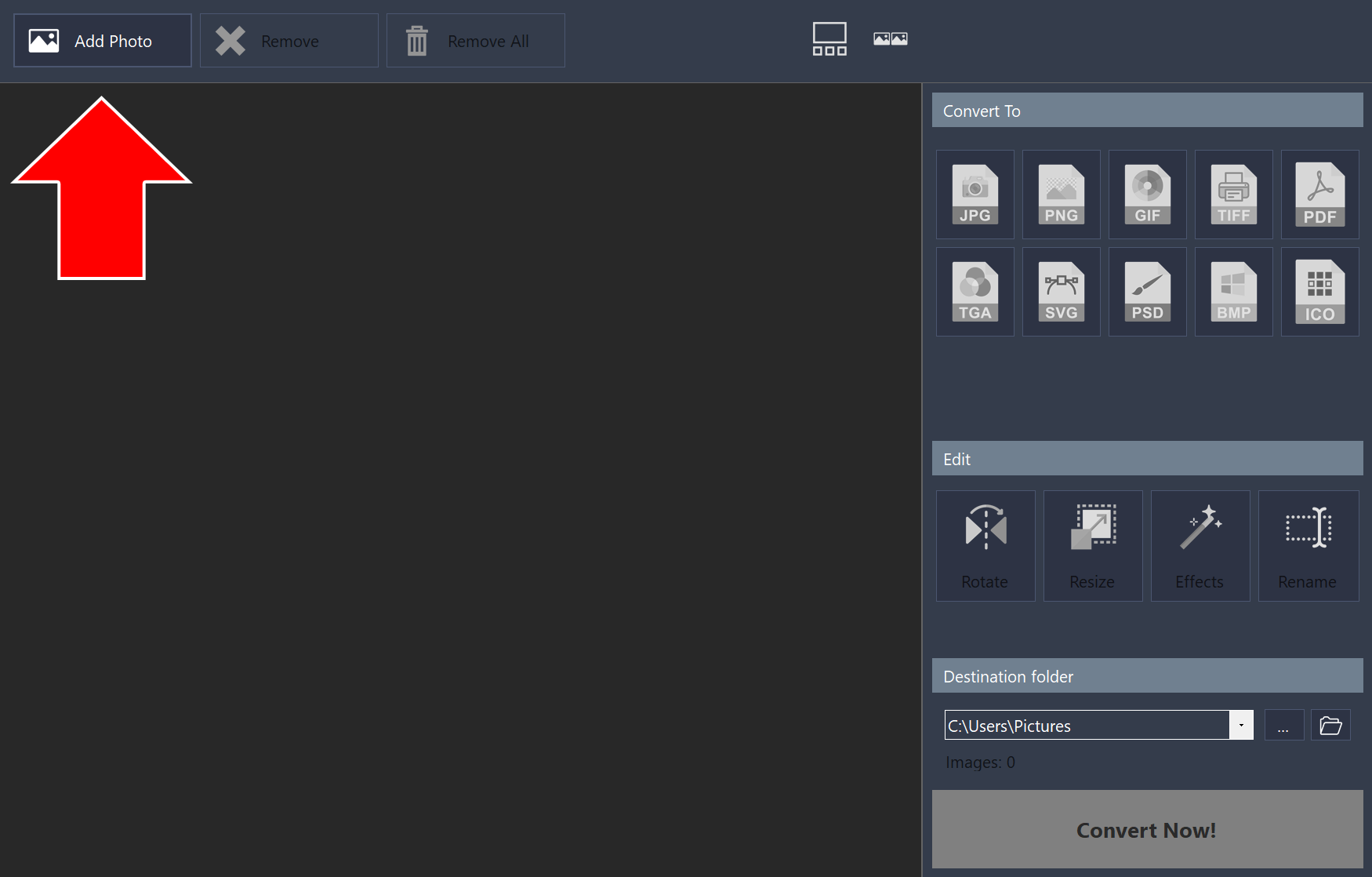
Click Add Photo in the top-left corner and select the images you want to convert to PDF.
Step 4: Choose PDF as the Output Format
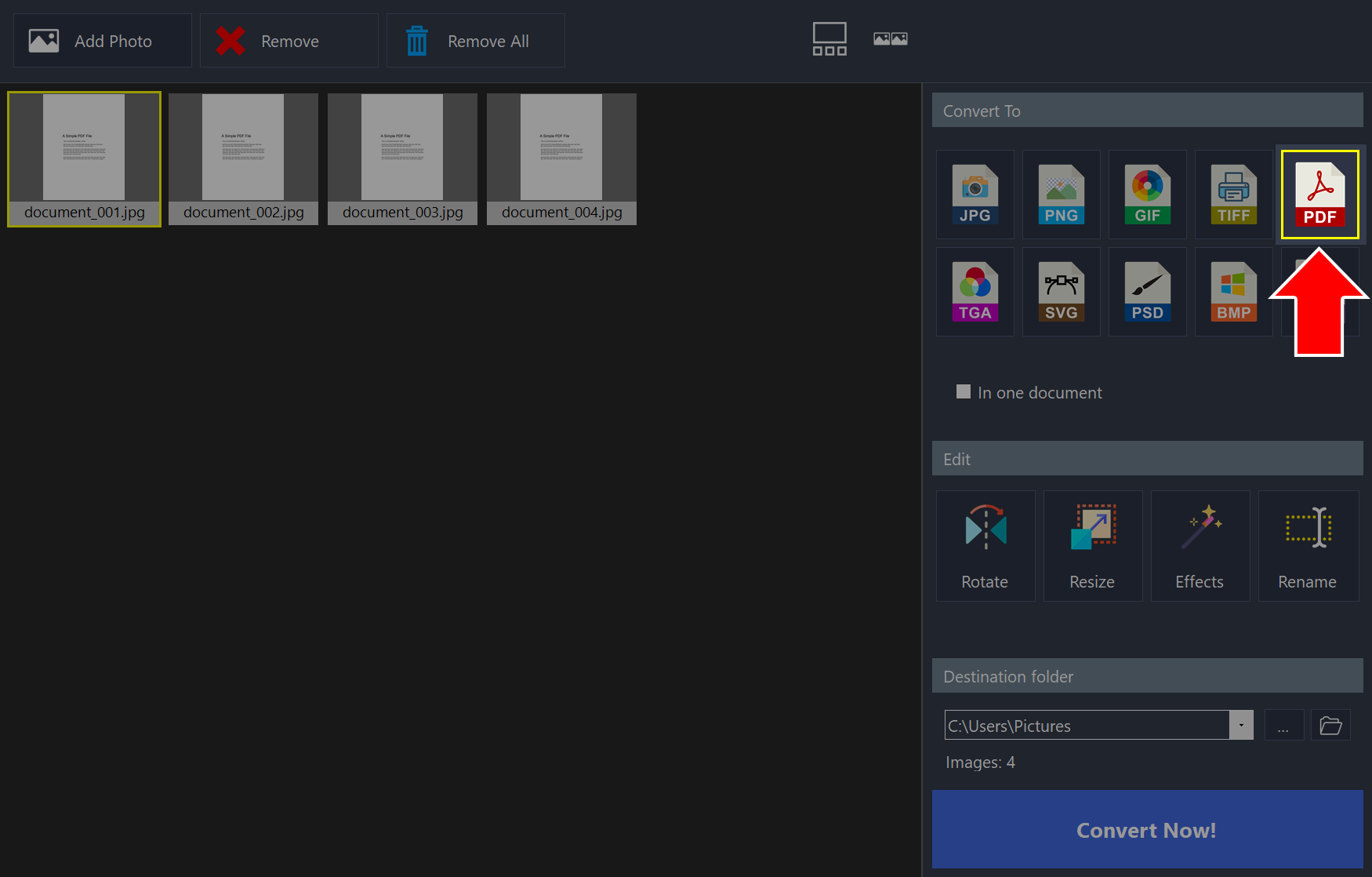
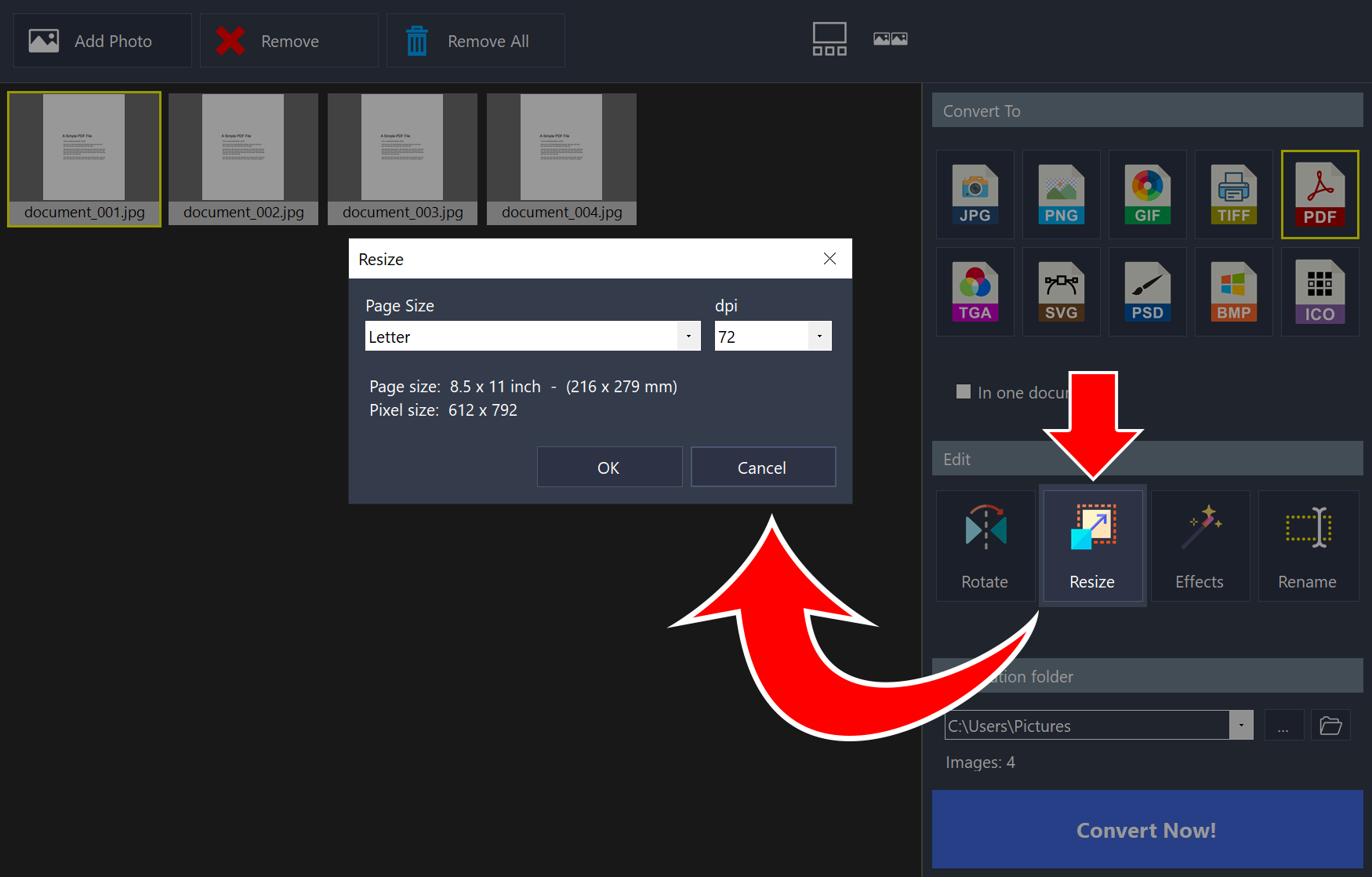
Under Convert To, click PDF.
Step 5: Choose the Page Size
Click Resize. In the Resize window, choose a Page Size, such as Letter, and a dpi value, then click OK.
Step 6: Set the Destination Folder and Click Convert Now!
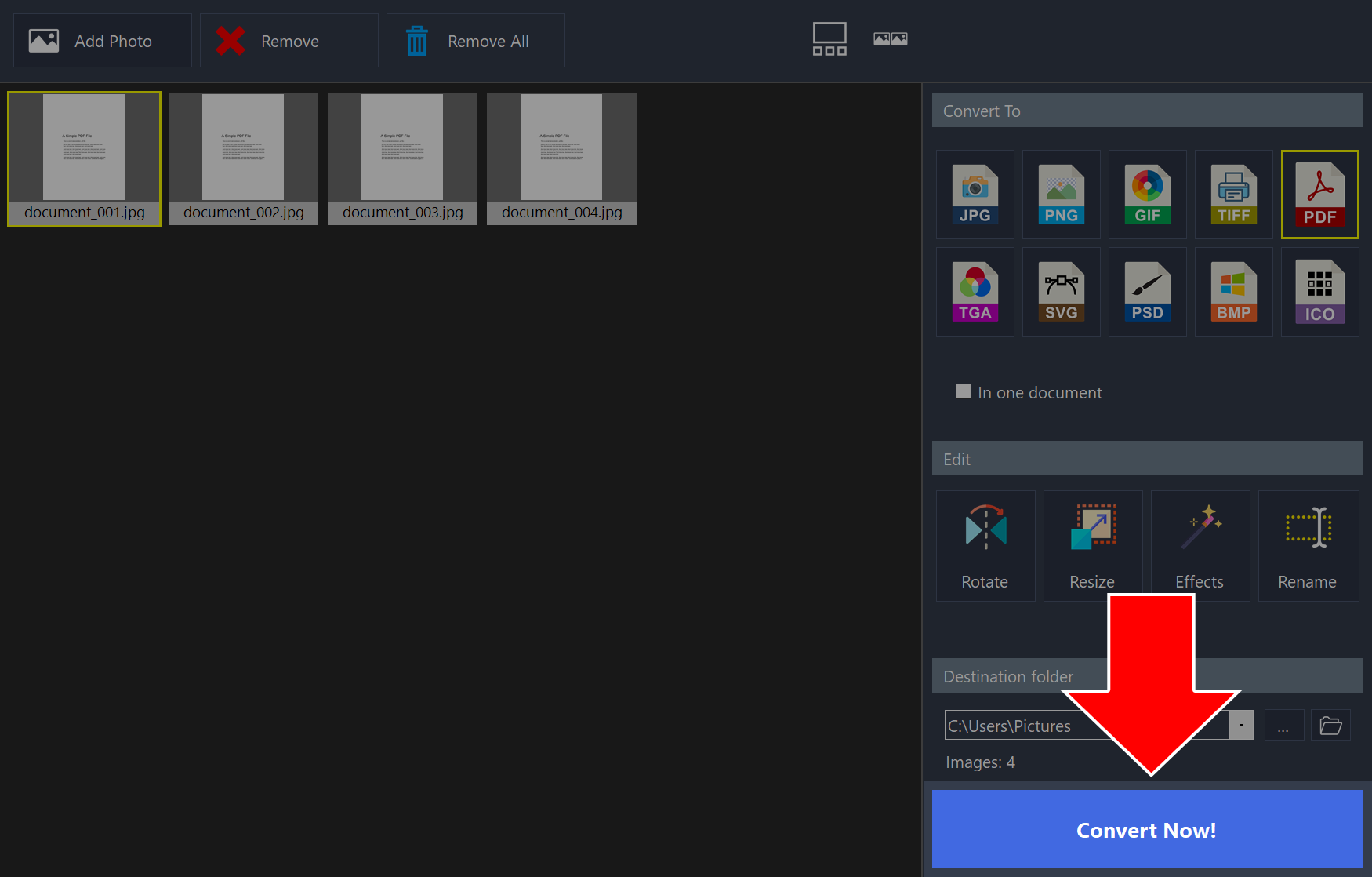
Under Destination folder, choose where the new files will be saved, then click Convert Now!
That’s it!
Need more help?
Browse more guides, or contact our Support Team if you can’t find what you need.