

How to Download Online Video
Add an online video to Video Converter Pro by its URL and save it in the format you choose.
Steps
Step 1: Download and Install Video Converter Pro
Download the Video Converter Pro installer, then run it to install Video Converter Pro.
Step 2: Copy the Video URL
In your web browser, copy the address of the online video from the address bar.

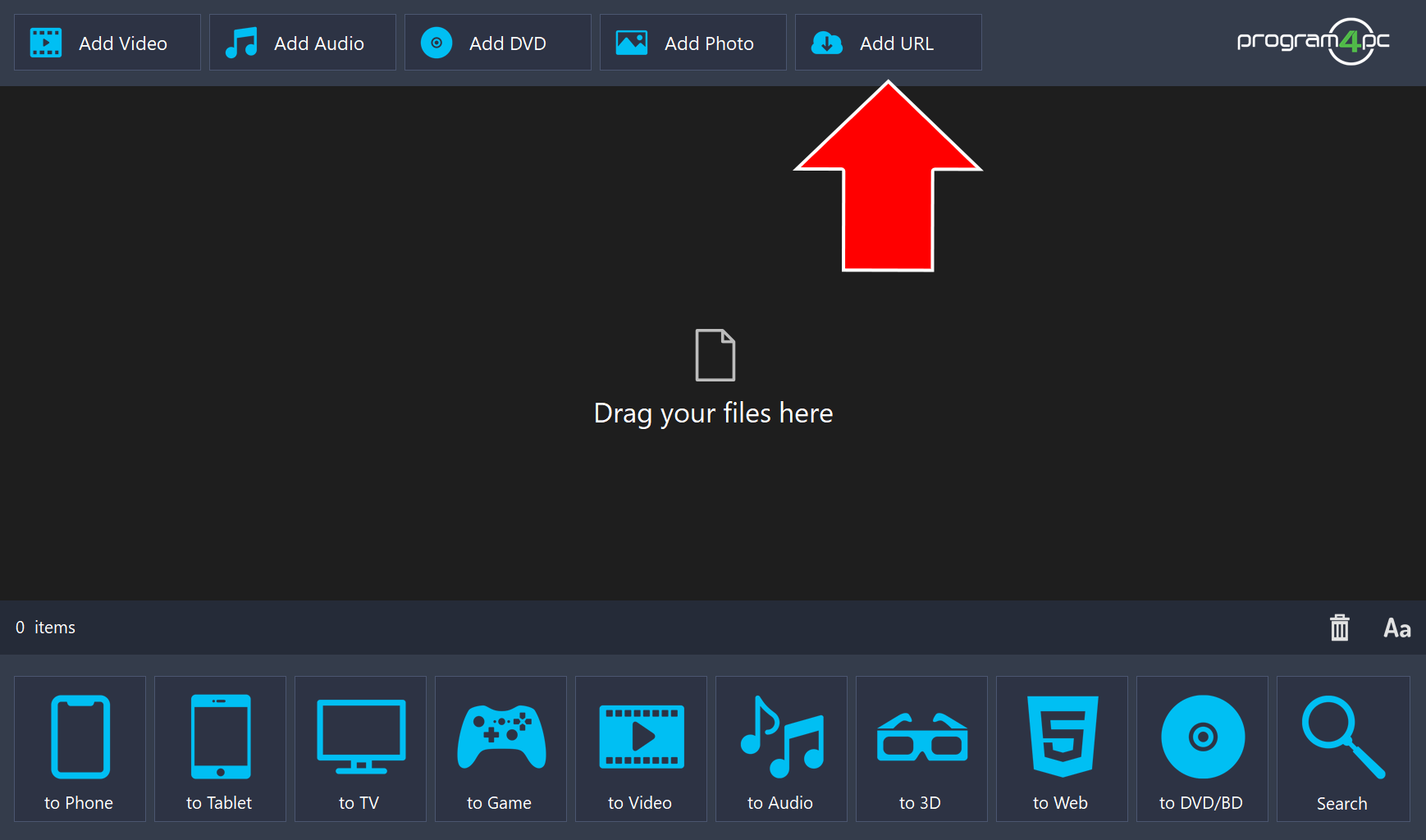
Step 3: Click Add URL
Click Add URL at the top of the program window.
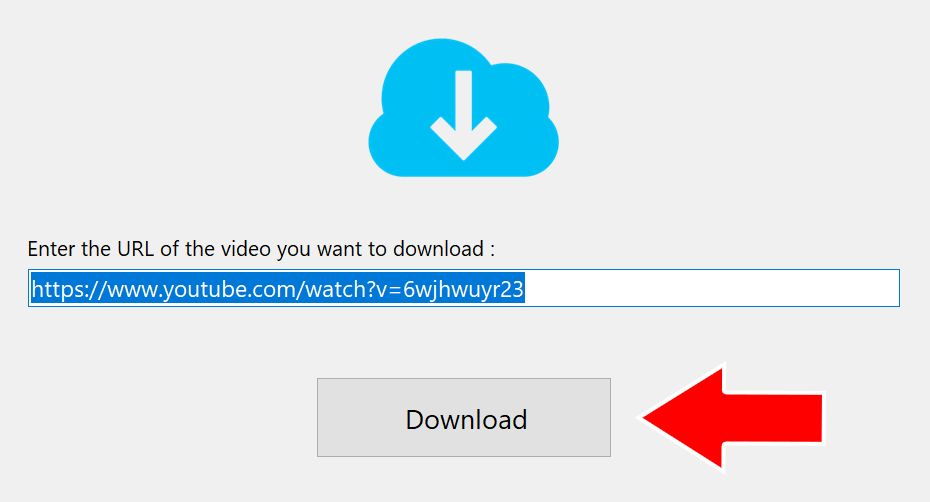
Step 4: Paste the URL and Click Download
Paste the address into the Enter the URL of the video you want to download field, then click Download.
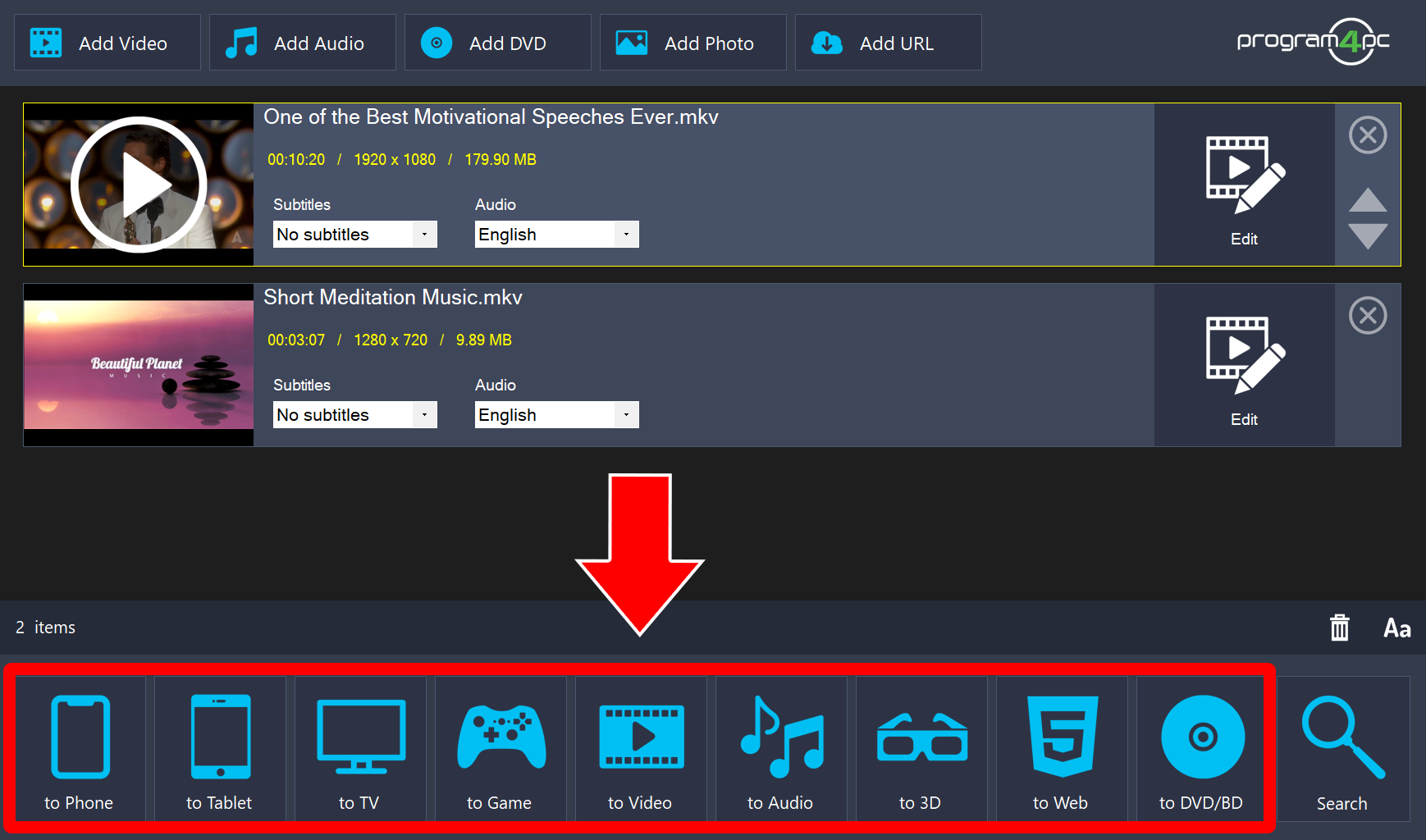
Step 5: Choose the Output Format
Click one of the output buttons at the bottom of the window, such as to Video or to Audio.
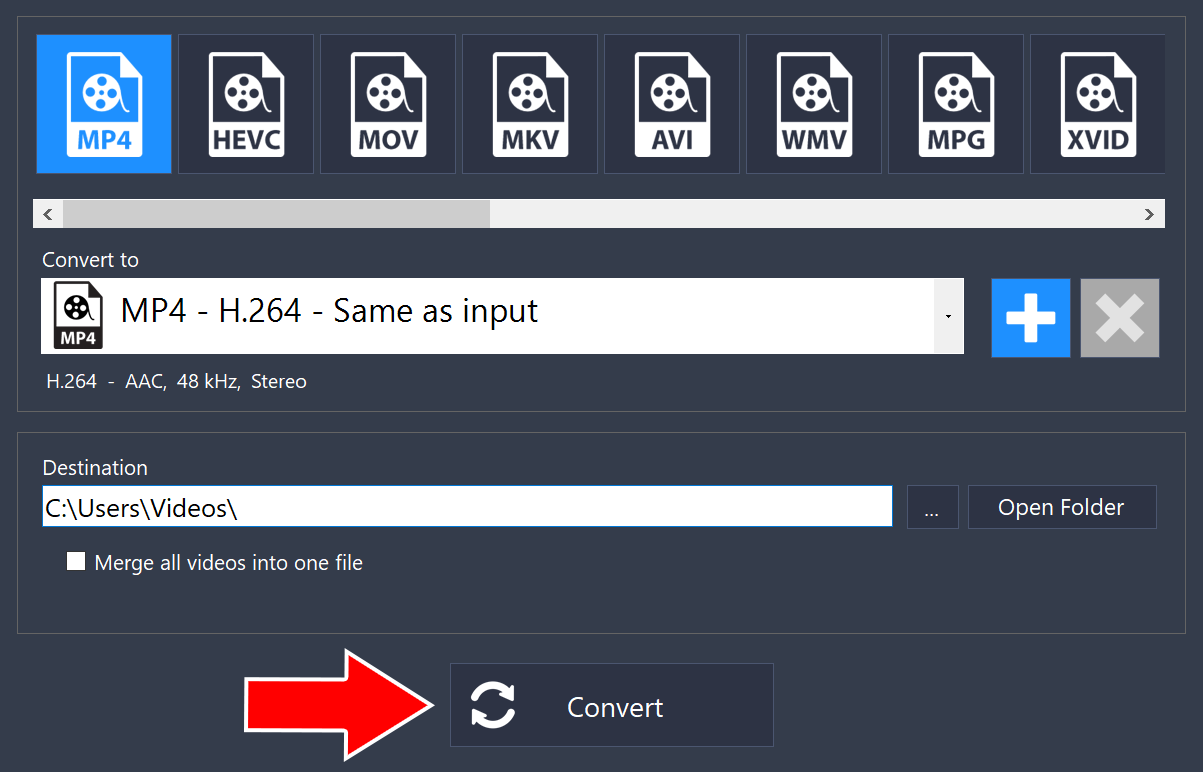
Step 6: Set the Destination and Start the Conversion
Choose a format at the top, such as MP4. Under Destination, choose where the converted files will be saved, then click Convert.
That’s it!
Please note: You're only entitled to download videos with authorized copyrights. Program4PC® software does not permit the copying of protected material. You may use the software to copy material for which you own the copyright or have obtained permission from the copyright owner.
Need more help?
Browse more guides, or contact our Support Team if you can’t find what you need.