

How to Extract Frames from a Video
Save frames from a video as image files with Photo Editor.
Steps
Step 1: Download and Install Photo Editor
Download the Photo Editor installer, then run it to install Photo Editor.
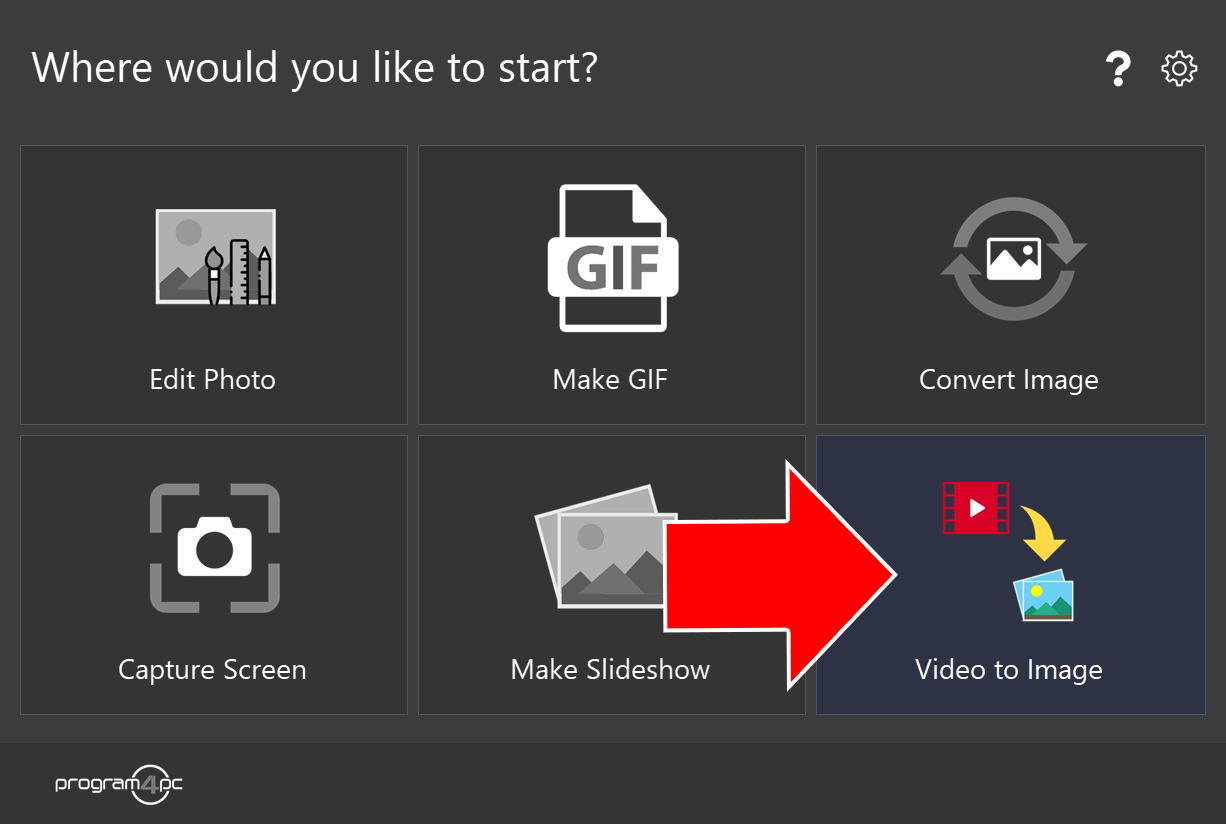
Step 2: Run Photo Editor and Click Video to Image
On the start screen, click Video to Image.
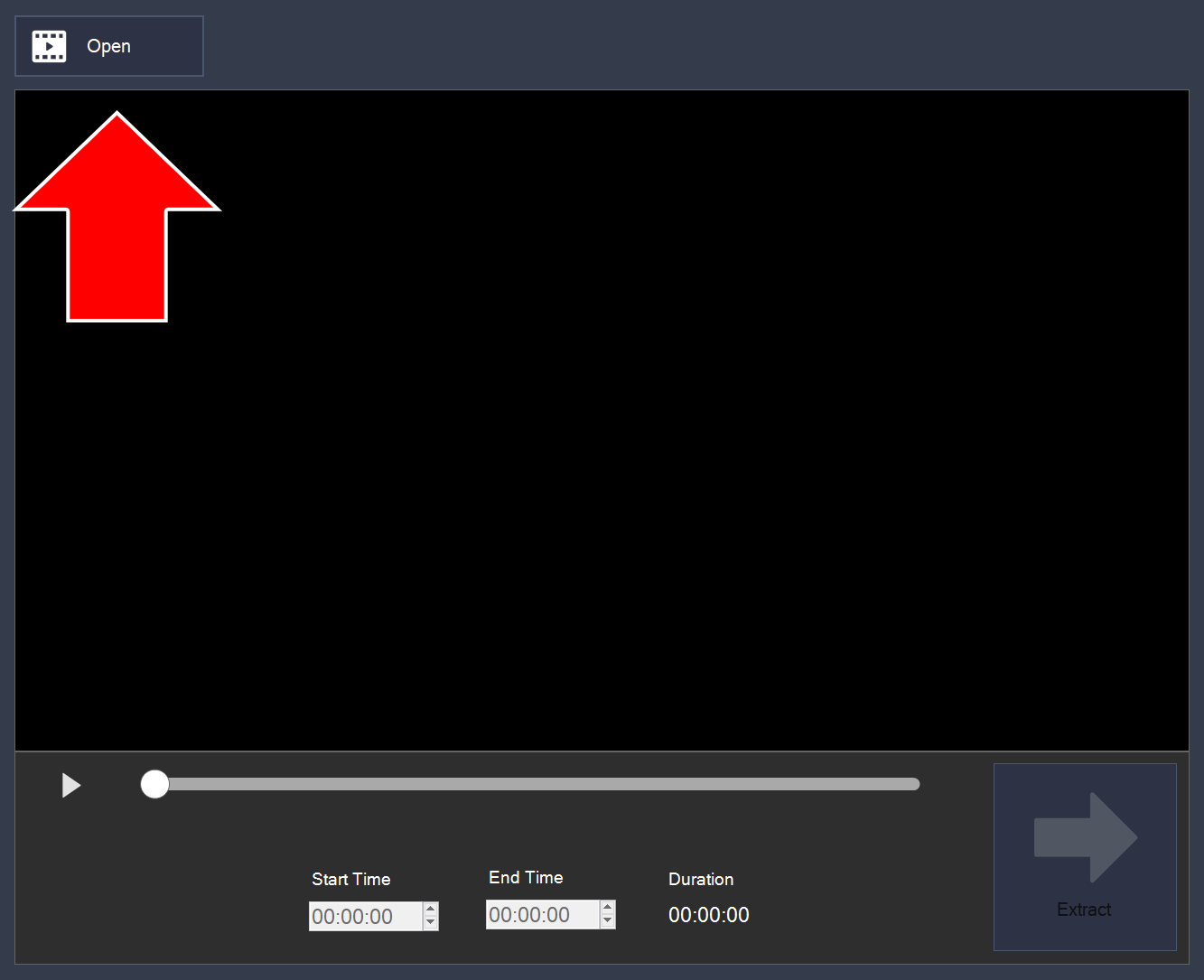
Step 3: Open a Video File
Click Open in the top-left corner and select the video you want to extract frames from.
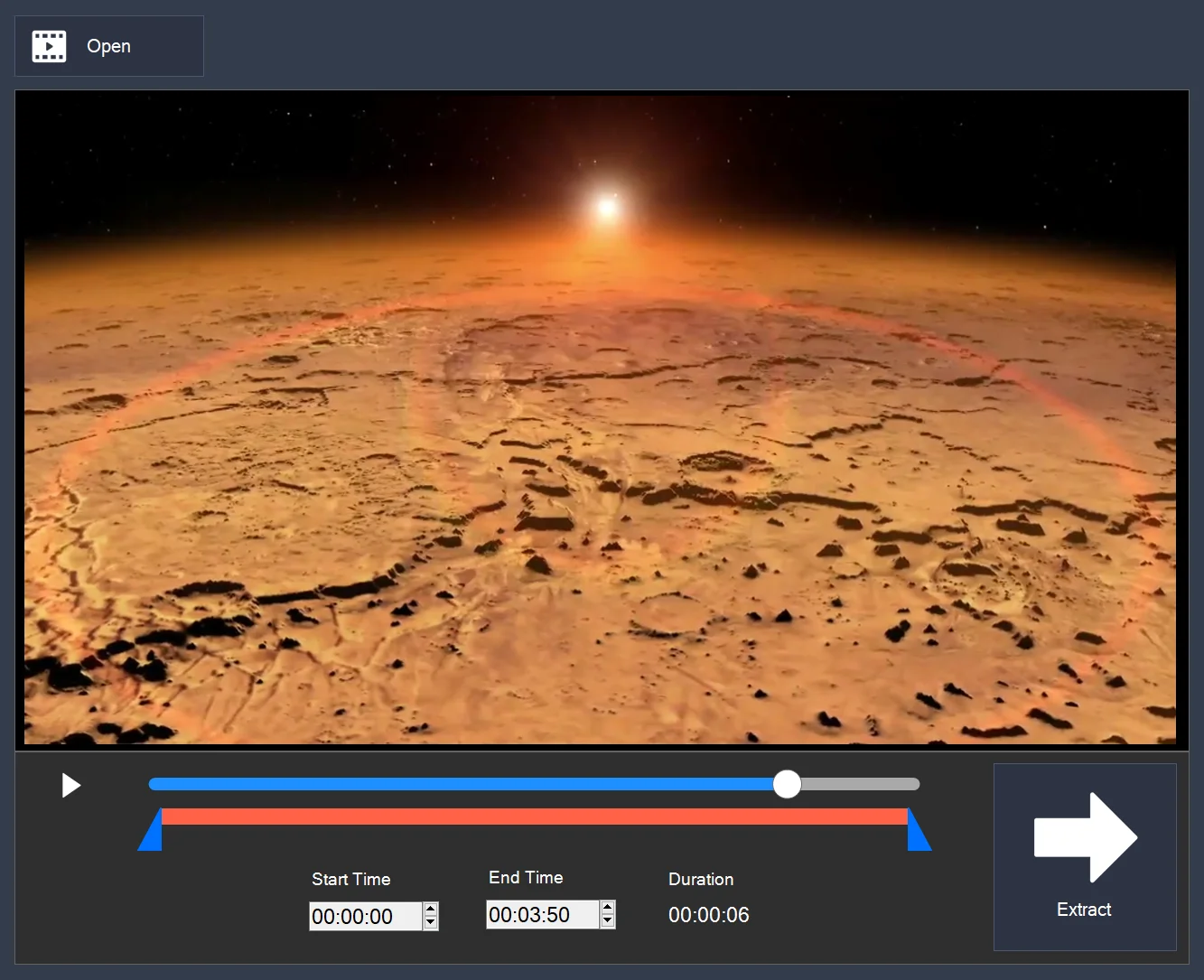
Step 4: Choose the Frames and Click Extract
Set the part of the video you want with the Start Time and End Time fields, then click Extract.
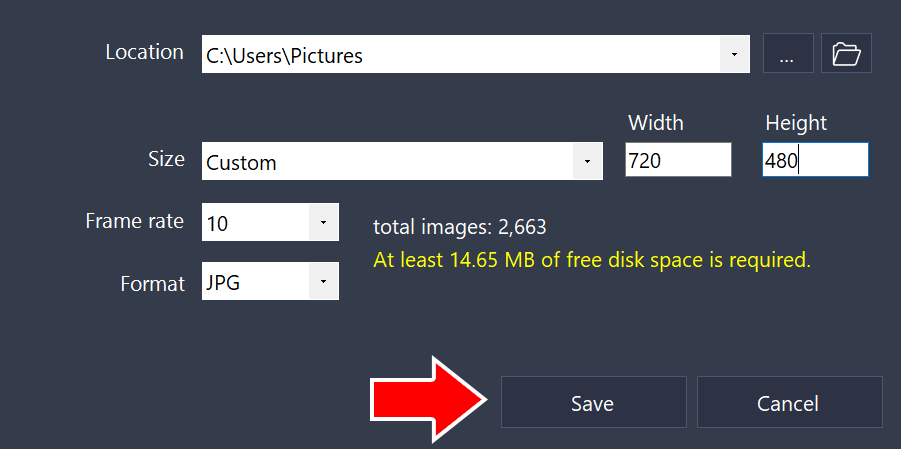
Step 5: Choose the Destination Folder and Save
Choose a folder in the Location field, then click Save. This window also shows the Size, Frame rate, and Format settings for the output images.
That’s it!
Need more help?
Browse more guides, or contact our Support Team if you can’t find what you need.