

How to Merge Several Audio Tracks into One File
Add one audio file to the end of another in the audio editor, then save them as one file.
Steps
Step 1: Download and Install Audio Editor
Download the Audio Editor installer, then run it to install Audio Editor.
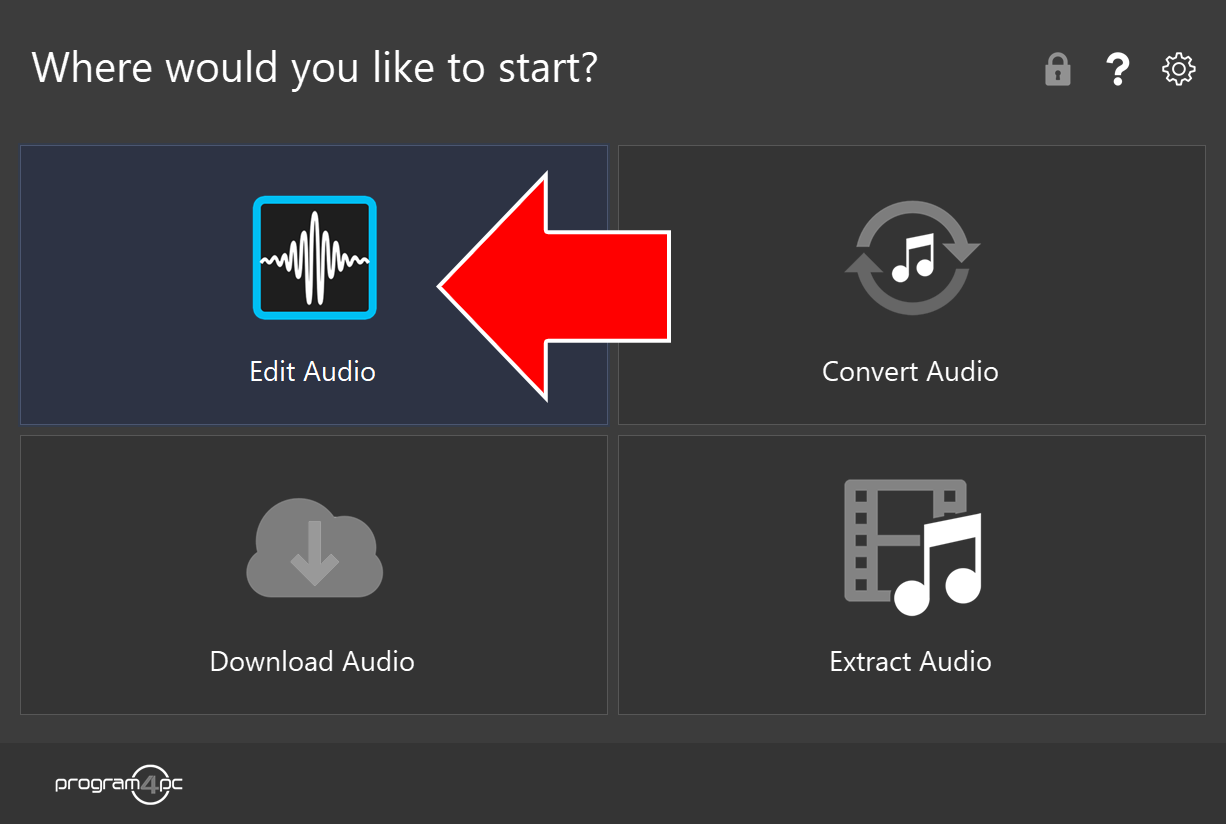
Step 2: Run Audio Editor and Click Edit Audio
On the start screen, click Edit Audio.
Step 3: Open Your Audio Files
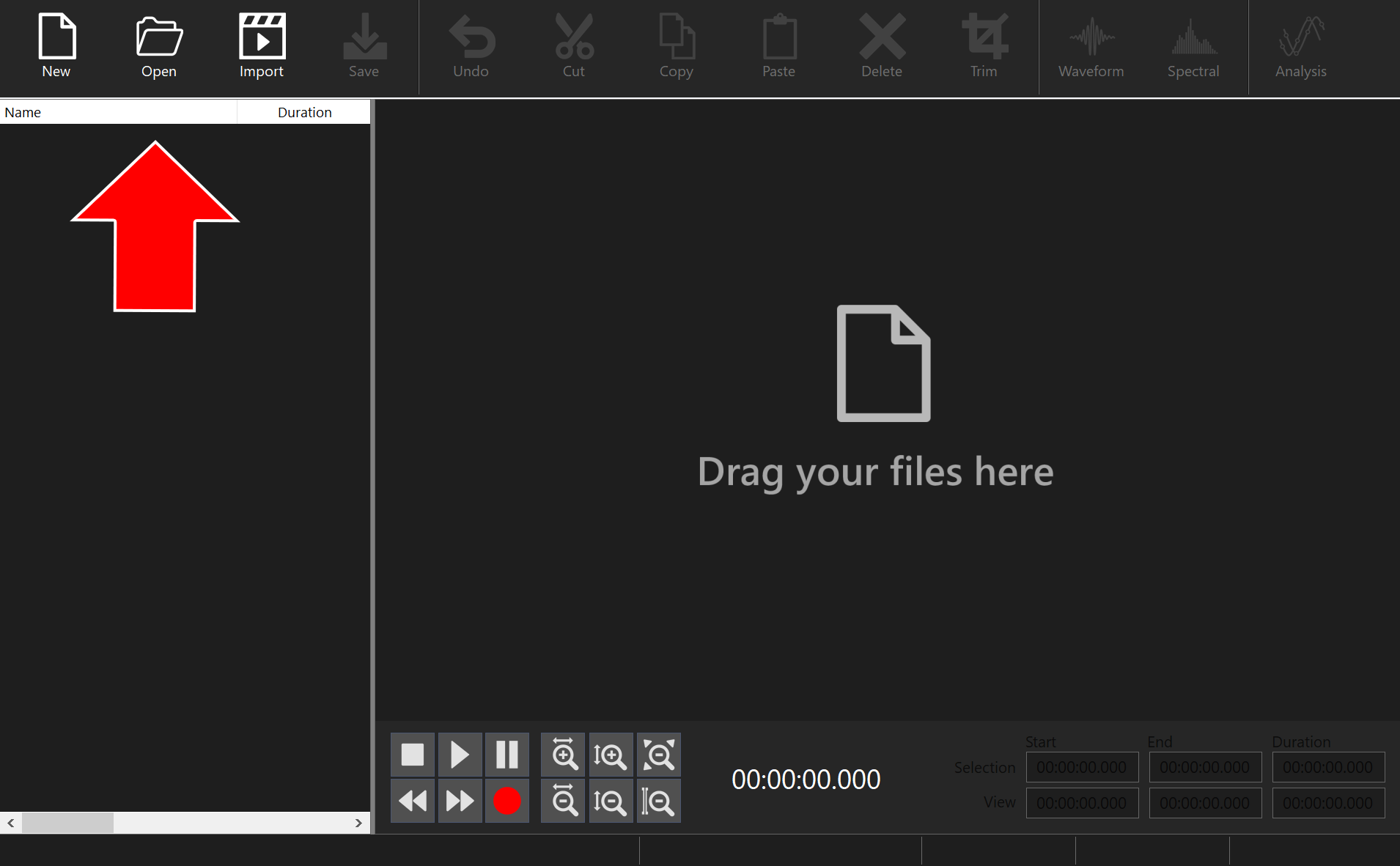
Click Open in the toolbar and open the first audio file. You can also drag your files and drop them into the window.
Step 4: Append the Next Audio File
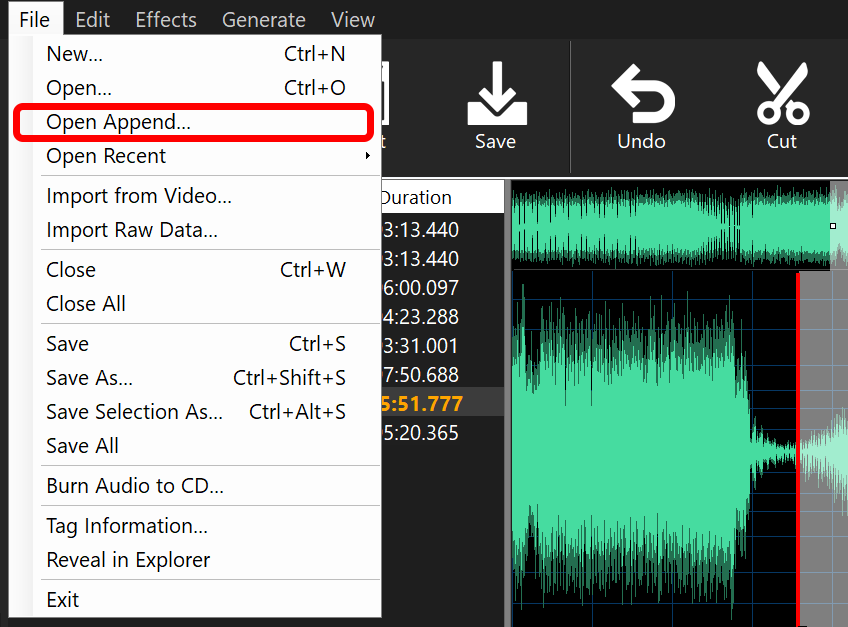
To add a second file to the end of the first, open the File menu and click Open Append. In the window that opens, browse for the second audio file you want to merge. It will be added to the end of the first file.
Step 5: Save Changes
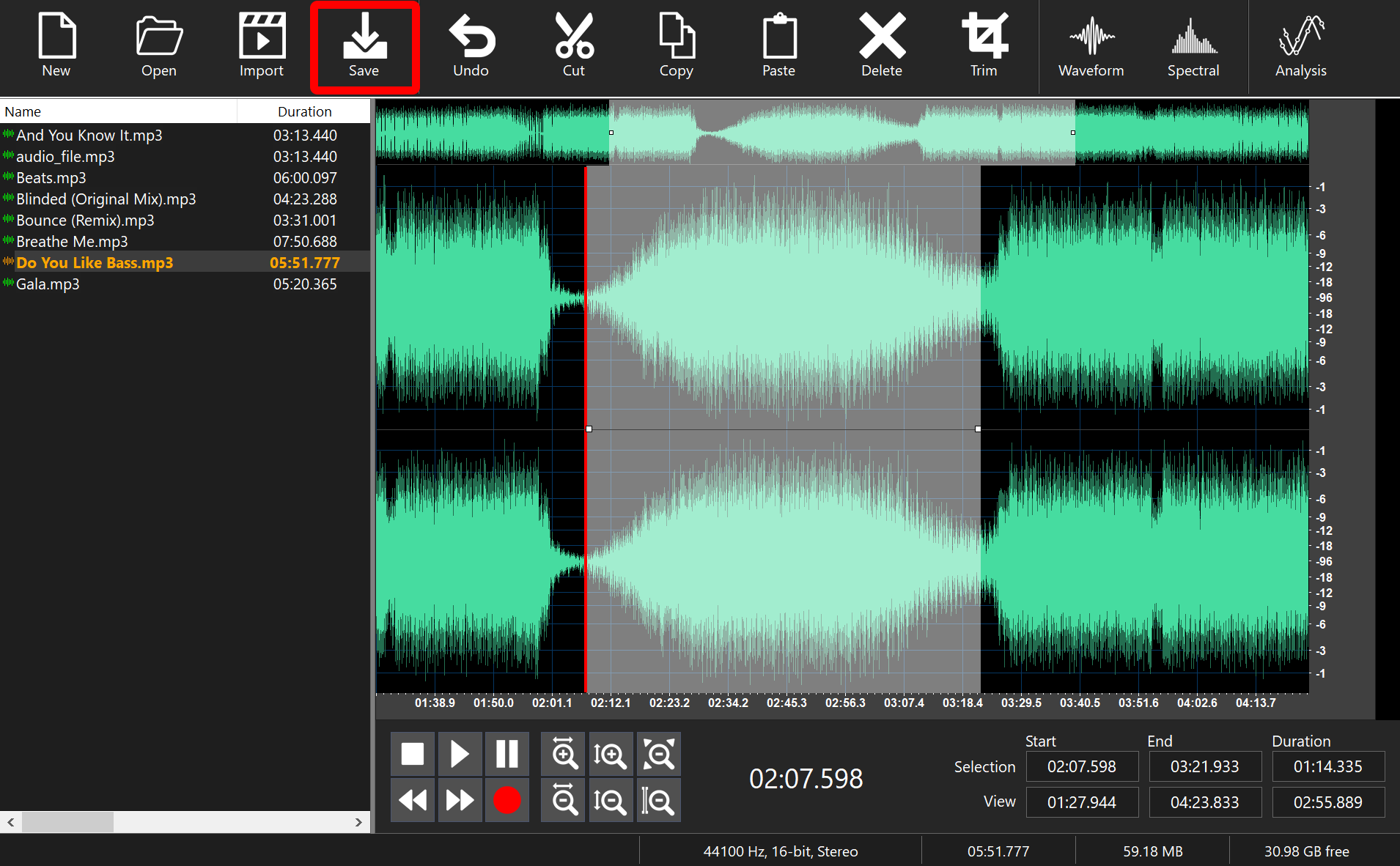
Click Save in the toolbar to save your changes.
That’s it!
Need more help?
Browse more guides, or contact our Support Team if you can’t find what you need.