
How to Record Voice
Record your voice from a microphone or another input device with Audio Editor.
Steps
Step 1: Download and Install Audio Editor
Download the Audio Editor installer, then run it to install Audio Editor.
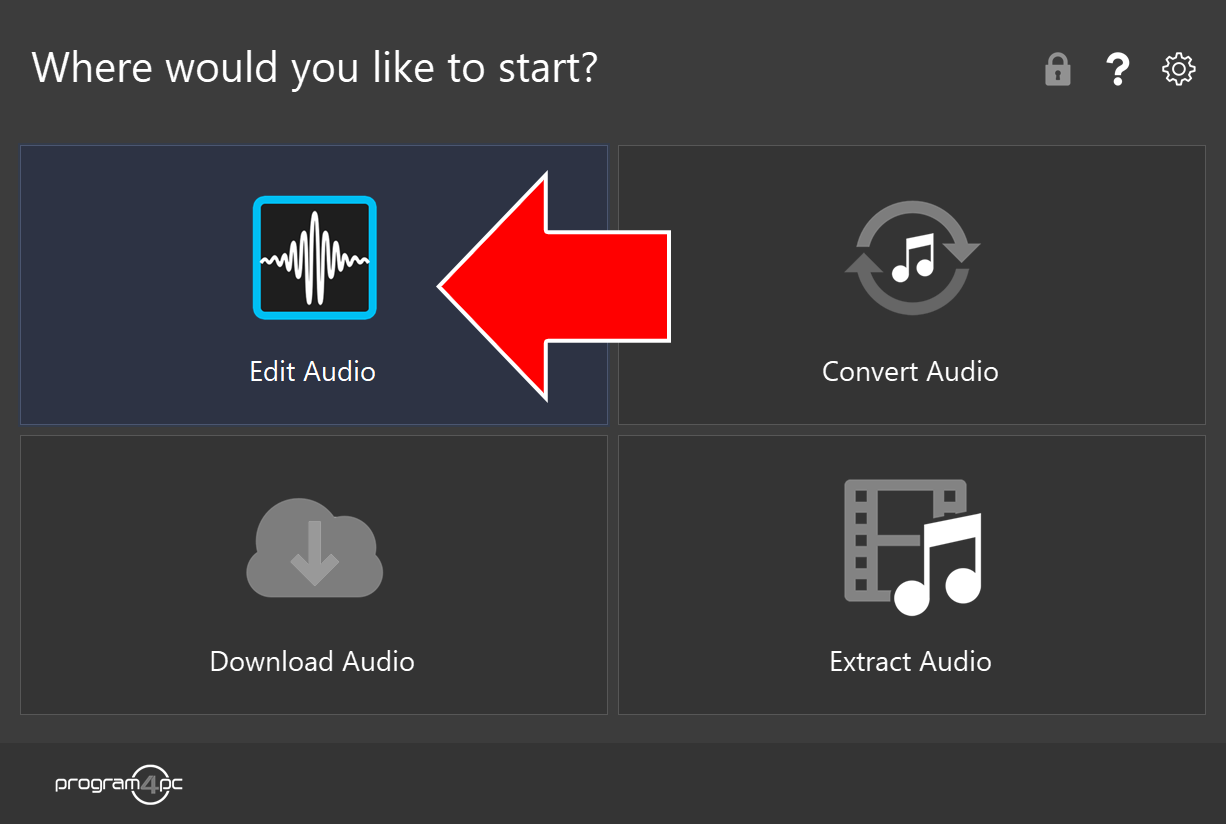
Step 2: Run Audio Editor and Click Edit Audio
On the start screen, click Edit Audio.
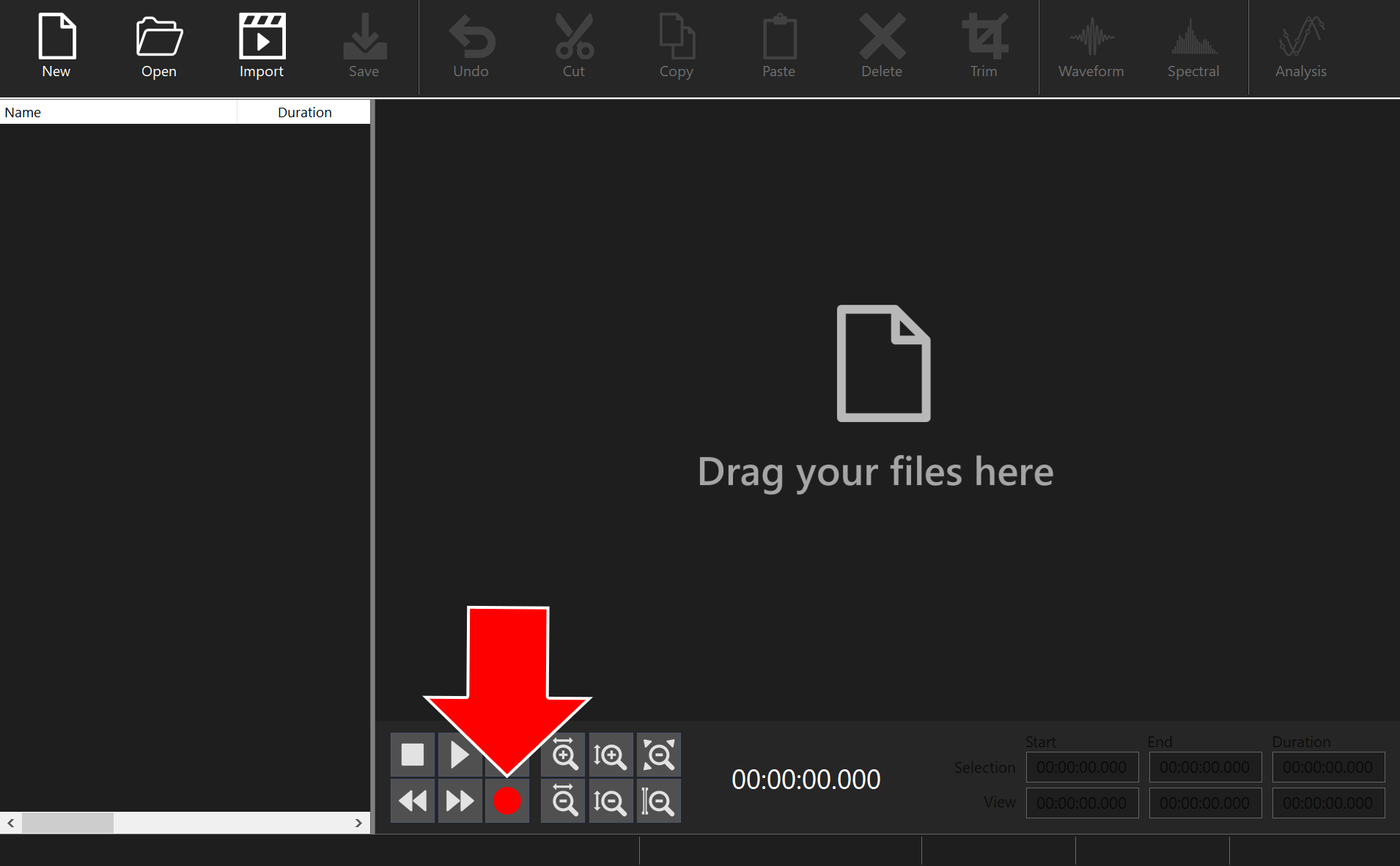
Step 3: Click the Record Button
Click the red record button (REC) in the controls at the bottom of the window.
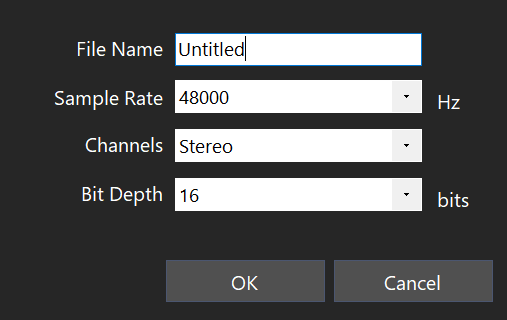
Step 4: Set Up the New Audio File
Enter a File Name and choose the Sample Rate, Channels, and Bit Depth, then click OK.
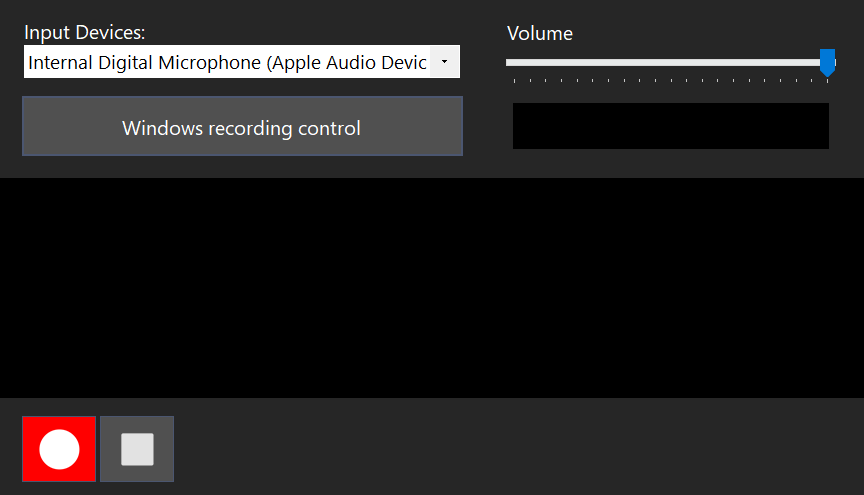
Step 5: Choose the Input Device and Start Recording
Choose your microphone or other input in the Input Devices list and set the Volume. Then click the red record button to start recording.
That’s it!
Need more help?
Browse more guides, or contact our Support Team if you can’t find what you need.