

How to Trim Video Files
Cut a video down to the part you want to keep with the editor in Video Converter Pro.
Steps
Step 1: Download and Install Video Converter Pro
Download the Video Converter Pro installer, then run it to install Video Converter Pro.
Step 2: Add Your Video
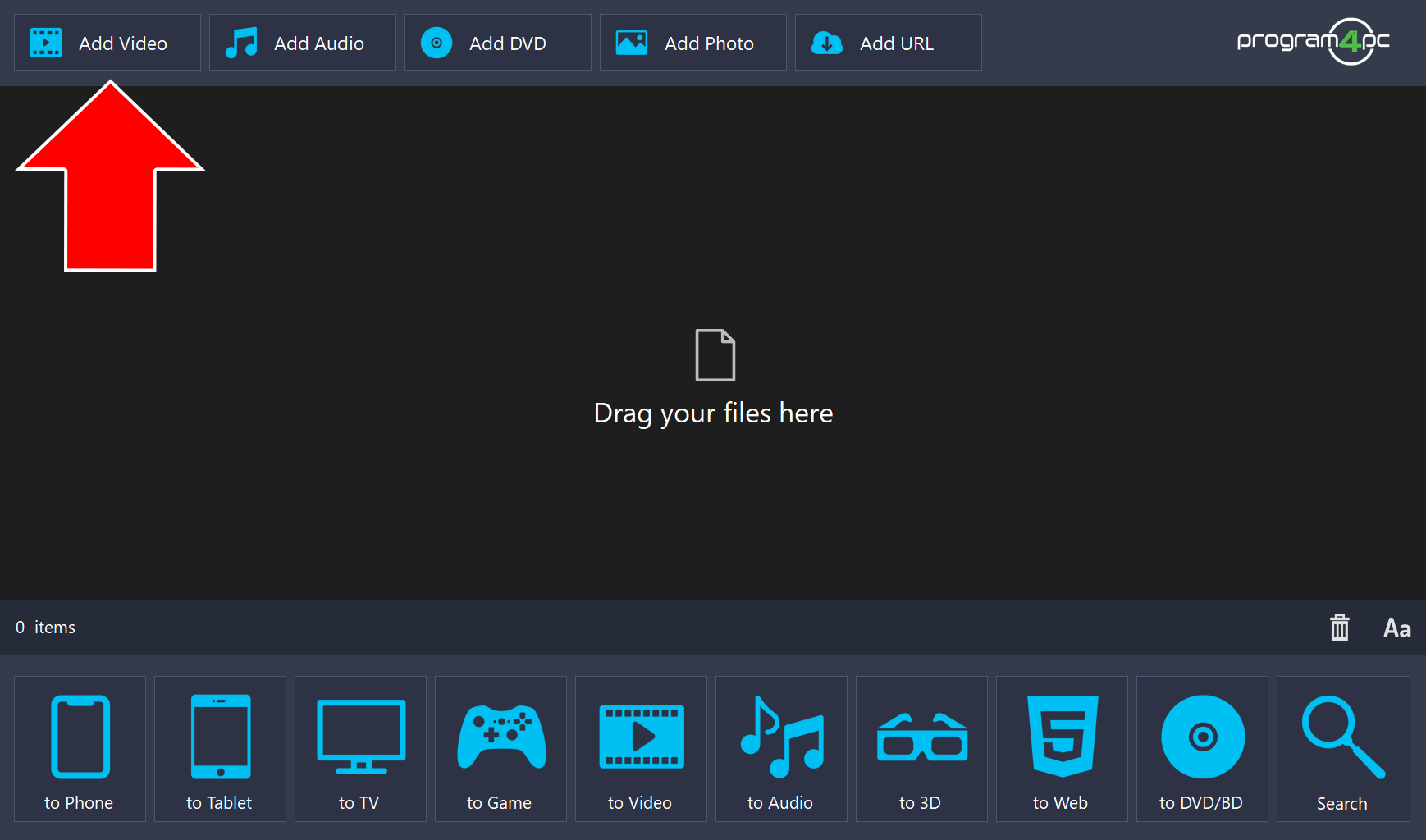
Click Add Video to add video clips to the program. You can also drag your videos and drop them into the program.
Step 3: Click Edit
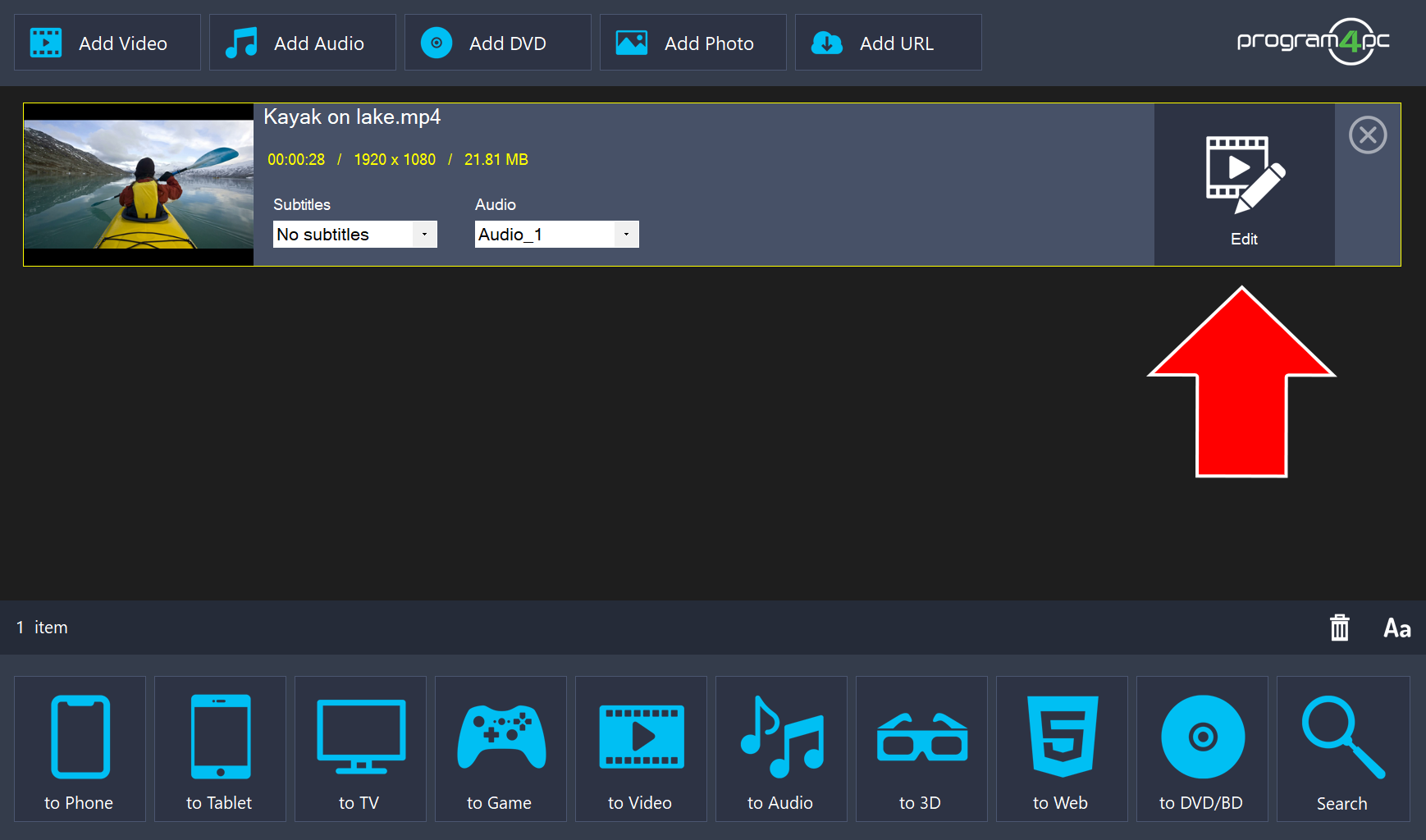
Click Edit to the right of the video in the list.
Step 4: Move the Markers to Trim Your Video
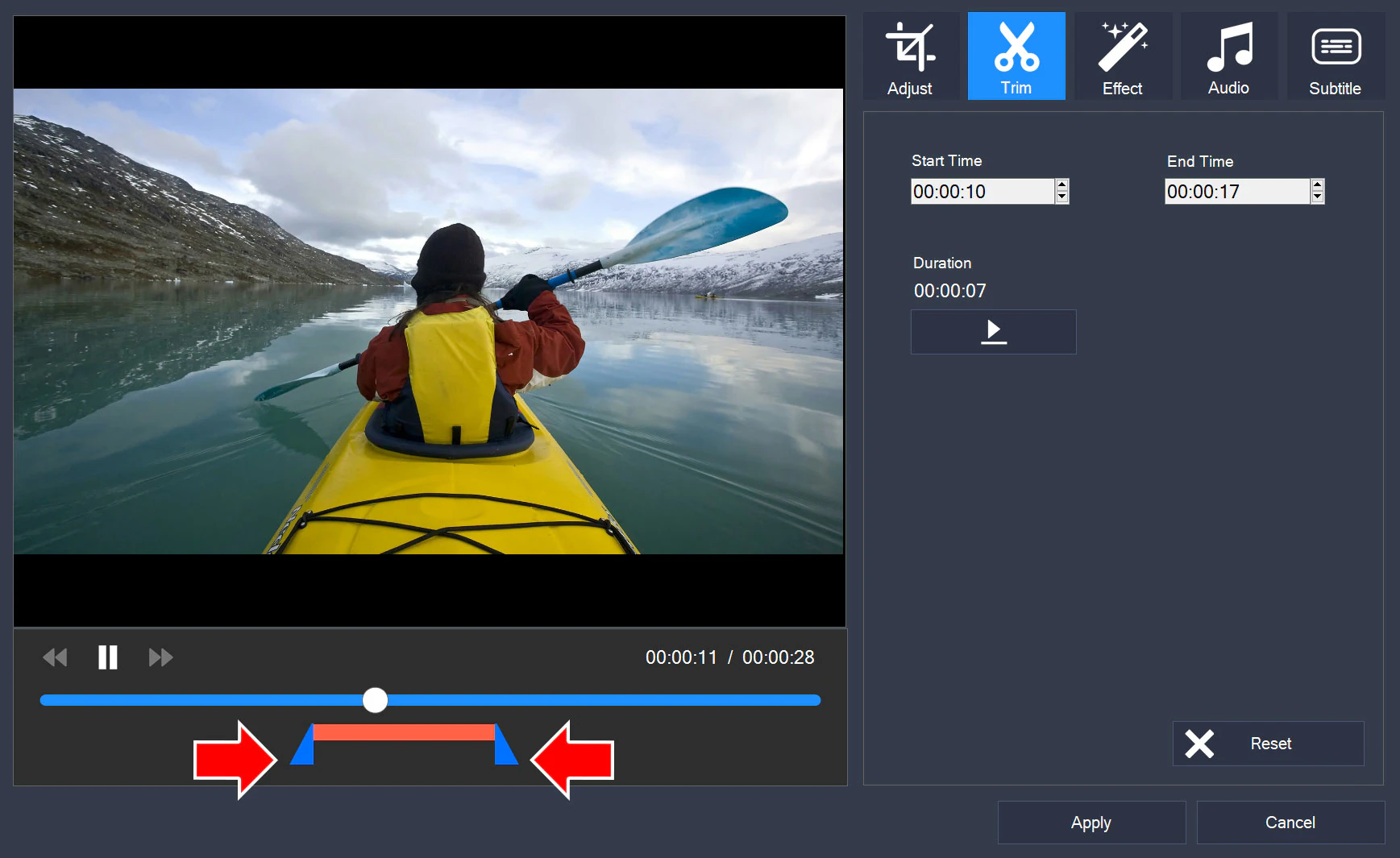
On the Trim tab, move the two markers below the timeline to set the start and end of the part you want to keep. The Start Time, End Time, and Duration fields show your selection. Then click Apply.
Step 5: Save and Convert the Trimmed Video
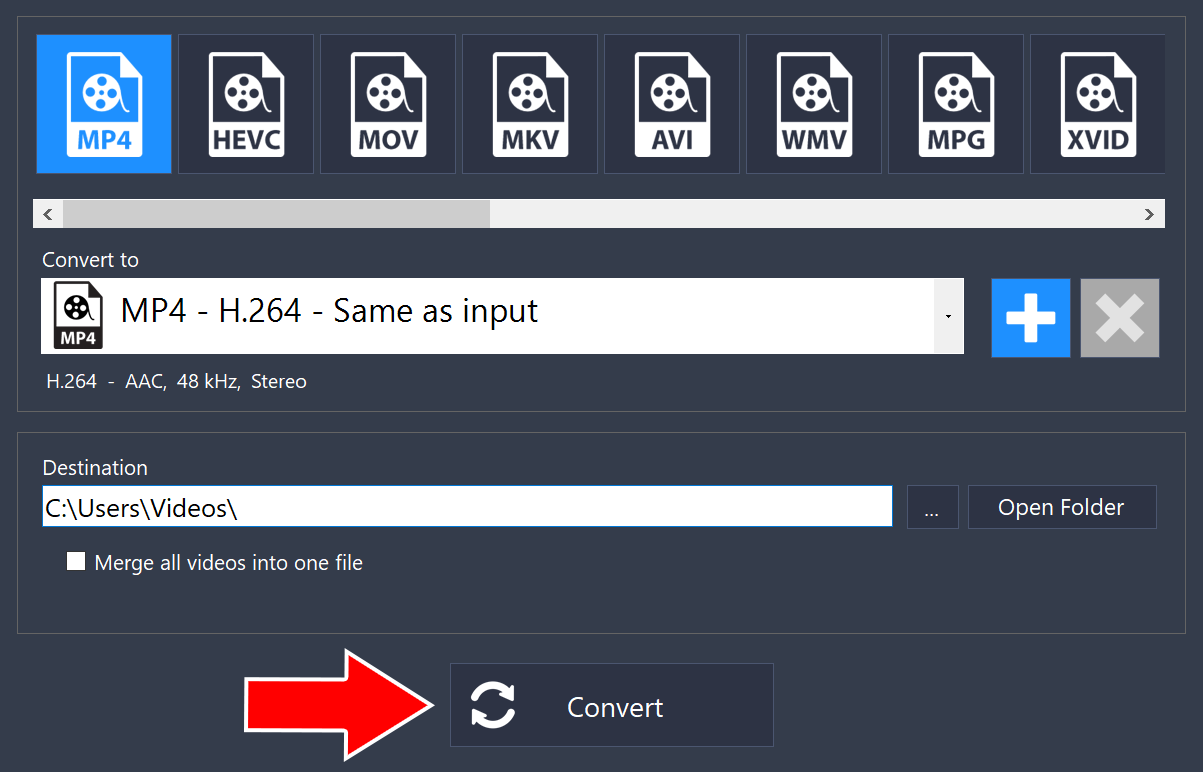
Choose a format at the top, such as MP4. Under Destination, choose where the converted files will be saved, then click Convert.
That’s it!
Need more help?
Browse more guides, or contact our Support Team if you can’t find what you need.